· julianalimin · Computer Stuff · 2 min read
How to Use System Restore?
As my promise before, now I’ll try to explain “how to use System Restore”.
Windows is well-known for having driver and “.dll” conflicts, as well as all sorts of software that causes problems with your computer. Luckily there’s a System restore feature that can return your computer back to a known working configuration, as long as you’ve created a restore point. System restore can be used to restore computer configuration after your computer was demage by virus, but usually virus disable our system restore so we can’t restore our computer. I’ll explain you how to enable it, but not today. I’ll promise soon.
Note that some software installations will create restore points automatically, but you should run it manually before installing any questionable applications. (Or better yet, don’t install questionable applications!)
How to Create Restore Point by your self?
To create a Restore Point click on click Start go to All Programs go to Accessories and then go to System Tools (detail).
Click on System Restore and you’ll be given a System Restore wizard screen.

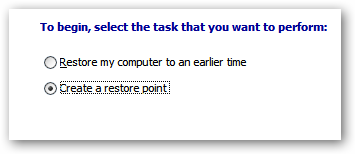
Click on “Create a restore point” and then click the Next button. You’ll be brought to a screen where you can type in a description for your restore point. Use something memorable if possible.

Once your restore point is created (which might take a few minutes), you will get a confirmation screen.

Now you’re done creating the restore point!
So, How to Restoring from a Restore Point?
To restore from a previously created restore point, open System Restore the same as above, but this time we’ll select “Restore my computer to an earlier time“. Note that System Restore is going to reboot your computer in order to restore (do not turn it off).

Click the next button, and you’ll be shown a calendar with bold dates wherever there is a restore point. Click on the date, and then click a restore point in the right hand side.

You’ll get a confirmation screen asking if you really want to do this. We’ll assume that there’s a problem requiring you to restore, so go ahead.

Your system will reboot and then restore your computer back to the previous configuration.
Note : This process will take much time, don’t turn off your computer. More programs install on your computer, more time to restore your previous configuration.