· julianalimin · Computer Stuff · 1 min read
How to Enable System Restore from Registry Editor?
My previous post was explain about “How to Enable System Restore from Group Policy?“.
The other ways to enable System Restore was from Windows Registry Editor.
Step by steps :
- Go to Run (click Start and go to Run), and type Regedit.

- In Registry Editor, locate the following keys :
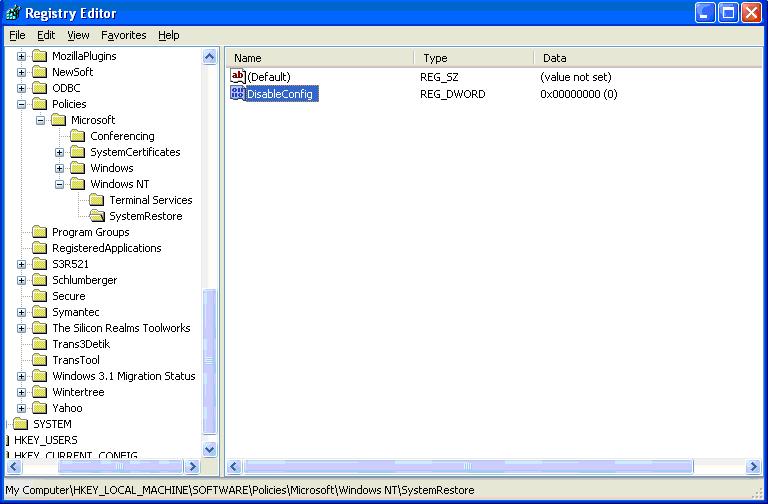
“HKEY_LOCAL_MACHINE\SOFTWARE\Policies\Microsoft\Windows NT”

- Under Windows NT, create a new key :
Click Edit (on the top of window) click New, and then click Key and type SystemRestore for name.

- Create a new DWORD Value :
Click Edit (on the top of window) click New, then click DWORD Value, and type DisableConfig for name

Double click the new key to open the DWORD Value dialog box, under value data, type 0 and then click OK

Or if you don’t want to be busy, just copy this script and paste on Notepad, save file with “EnableSystemRestore.reg”, and double click it.
Script :
Windows Registry Editor Version 5.00
[HKEY_LOCAL_MACHINE\SOFTWARE\Policies\Microsoft\Windows NT\SystemRestore]
“DisableConfig”=dword:00000000
Or you can try this one : Enable System Restore from Group Policy
Refer to : http://support.microsoft.com/kb/283073