· julianalimin · Computer Stuff · 4 min read
How to Enable Windows Task Manager and Regedit Editor?
Our last post was about protecting USB Flash Drive from virus. Now, we want to share about How to Enable Windows Task Manager and Regedit Editor?
If you having problem like “task manager and registry won’t open”, we think you’ve been infected by virus.
Normally the reason of this message is that your computer has been infected by virus, trojan, or piece of spyware and message look like” Registry editor has been disabled by your administrator” or “Task Manager has been disabled by your administrator”. By default Windows Task Manager and registry editor status is enabled, but a user can also disable or enable it manually. Some time a registry hack applies on both editors to disable it. Before proceeding further, first scan your system with up-to-date antivirus, and then follow the given steps to enable it.
To enable this feature, you will need to be logged into your computer with administrative rights.
First open your text editor (notepad), and copy this script.
‘Enable/Disable Registry Editing tools
‘© Fithbiz.com
Option Explicit
‘Declare variables
Dim WSHShell, n, MyBox, p, t, mustboot, errnum, vers
Dim enab, disab, jobfunc, itemtype
Set WSHShell = WScript.CreateObject(“WScript.Shell”)
p = “HKCU\Software\Microsoft\Windows\CurrentVersion\Policies\System\”
p = p & “DisableRegistryTools”
itemtype = “REG_DWORD”
mustboot = “Log off and back on, or restart your pc to” & vbCR & “effect the changes”
enab = “ENABLED”
disab = “DISABLED”
jobfunc = “Registry Editing Tools are now “
‘This section tries to read the registry key value. If not present an
‘error is generated. Normal error return should be 0 if value is
‘present
t = “Confirmation”
Err.Clear
On Error Resume Next
n = WSHShell.RegRead (p)
On Error Goto 0
errnum = Err.Number
if errnum <> 0 then
‘Create the registry key value for DisableRegistryTools with value 0
WSHShell.RegWrite p, 0, itemtype
End If
‘If the key is present, or was created, it is toggled
‘Confirmations can be disabled by commenting out
‘the two MyBox lines below
If n = 0 Then
n = 1
WSHShell.RegWrite p, n, itemtype
Mybox = MsgBox(jobfunc & disab & vbCR & mustboot, 4096, t)
ElseIf n = 1 then
n = 0
WSHShell.RegWrite p, n, itemtype
Mybox = MsgBox(jobfunc & enab & vbCR & mustboot, 4096, t)
End If
Save with name “RegTools.vbs”
Now double click on this file to run this .vbs file.

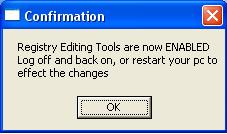
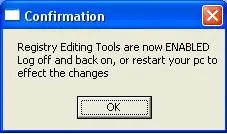
And you’ll see a Information that your Registry editing tools was Enabled.
. : : Have a nice try : : .